Simplest Conversion† [edit ]
Open OAR File
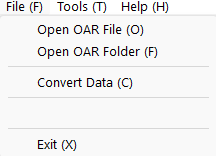
Select "File" menu -> "Open OAR File", and select OAR file (ex. ABC.oar)
OAR file is extracted
OAR folder is created with prefix "OAR_" at same folder as the OAR file (ex. OAR_ABC)
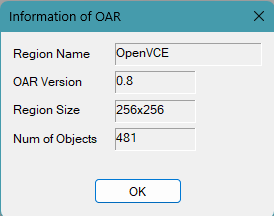
Information dialog of OAR file is popped up
"Convert Data" sub menu becomes active automatically Set Output Format
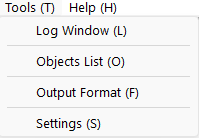
Select "Tools" menu -> "Output Format"
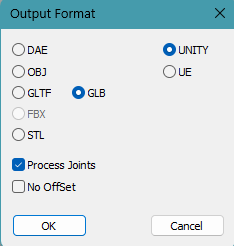
Select output data format, target engine (Unity or UE) , Joint Support and No Offset options
The selected state is displayed at the bottom of the program Show Log Window
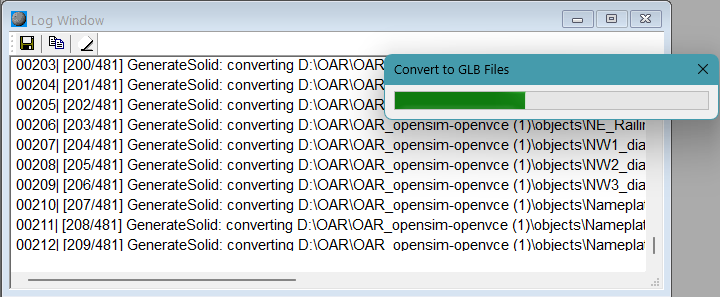
Select "Tools" menu -> "Log window" Convert OAR files
Select "File" menu -> "Convert Data"
Conversion starts and Data folder is created with prefix "{DAE_ | OBJ_ | GLTF_ | GLB_ | STL_}" at same folder as the OAR folder (ex. DAE_ABC) for Unity† [edit ]
Unity Editor extension[edit ]
Before drag and drop converted dae folder to the project view of Unity, please drag and drop to Unity3D\Editor folder to the project view first.
If you use Unity2022, please drag and drop to Unity3D\Editor_2022 folder to the project view first (v1.8.6). import of glTF/GLB data[edit ]
Since Unity cannot import glTF/GLB files natively, you need the glTFast package.
Install glTFast (com.unity.cloud.gltfast) via the Package Manager.In the Package Manager, select “Install package by name…” and enter com.unity.cloud.gltfast. drag and drop to Hierarchy window[edit ]
In Unity 6.x, the position may shift when you drag and drop an asset into the Hierarchy.
Enable the following option: Edit → Preferences → Scene View → "Use prefab asset position when dropping on the Hierarchy window". Water asset[edit ]
The Water prefab included in v1.8.6 and later is compatible with both BRP and URP. UnityChan[edit ]
The UnityChan avatar prefab is version 1.2.1 for BRP and version 1.4.0 for URP. for UE5[edit ]
Plugins[edit ]
OARSelectMaterial[edit ]
When importing glTF/GLB files, this plugin conflicts with the launch of this plugin, so this plugin must be deleted or disabled. SetLocationByParameter[edit ]
Open OAR File† [edit ]
Select OAR file or archive.xml file in extracted OAR folder.
When OAR file is selected, OAR file is extracted at the same folder as the OAR file and with "OAR_"(default) prefix folder name.
If OAR file is read correctoly, "Information of OAR" Dialog is poped up and OAR path displayed at status line. Open OAR Folder† [edit ]
Select extracted OAR folder.
If OAR file is read correctoly, "Information of OAR" Dialog is popped up and OAR path displayed at status line. Convert Data† [edit ]
Convert OAR files to DAE/OBJ/glTF/GLB/STL files.
for example, DAE folder with prefix "DAE_"(default) is created at the same folder as the OAR file/folder.
Log Window† [edit ]
Objects List† [edit ]
Output Format[edit ]
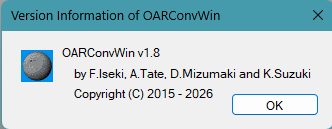
Show Output Format Dialog Show Information Dialog of this application
Child Windows and Dialog Windows† [edit ]
Information of OAR Dialog† [edit ]
Information of OAR (Region). Log Window[edit ]
Floppy Icon [edit ] Copy Icon [edit ] Copy selected area to cripboard. Eraser Icon [edit ] Objects List Dialog[edit ]
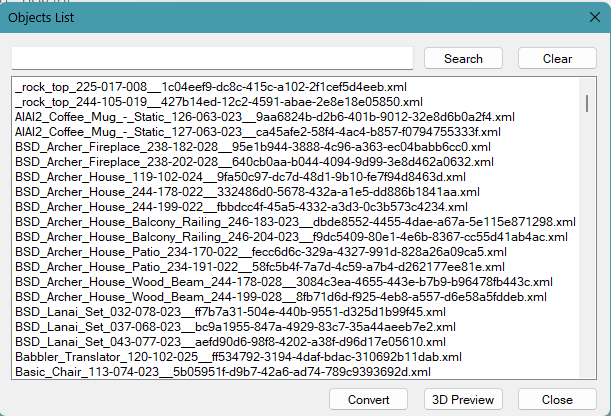
Display name list of read objects.
While this Dialog is displayed, File Menu is disabled. Double Click a object name[edit ]
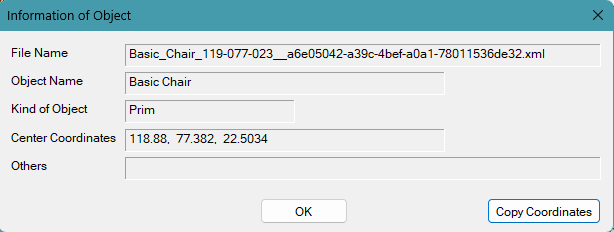
Show Information of Object Dialog Select some object names and click "Convert " button[edit ]
Selected objects are converted. Select some object names and click "3D Preview " button[edit ]
Selected objects are displayed on 3D Preview Window . Information of Object Dialog [edit ]
Copy Coordinates[edit ]
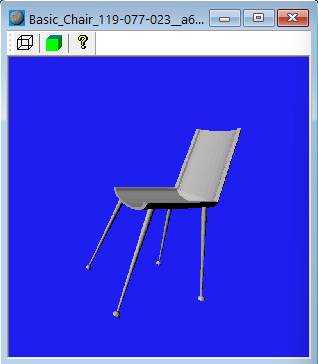
copy "Center Coordinates of Object" to clip bord 3D Preview Window [edit ]
Display a preview a shape of object using BREP.
Texture is not displayed. This is a Preview. Wire Icon [edit ] Solid Icon [edit ] Display planes of Solid.
Illegal surface is displayed as Red Plane. Question Icon [edit ] Display solid (BREP) information of this object. Output Format Dialog[edit ]
DAE/OBJ/GLTF/GLB/STL[edit ]
UNITY/UE[edit ]
Process Joints[edit ]
No Offset[edit ]
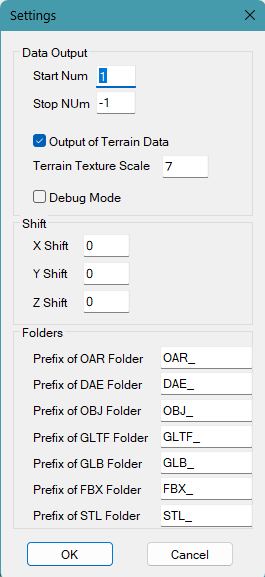
Settings Dialog† [edit ]
Start Num† [edit ]
Number of objects to start the conversion.
0 or less is specified, it is considered 1. Number of objects to stop the conversion.
-1 means infinity. Output of Terrain Data† [edit ]
If checked, Terrain data is converted, too. Terrain Texture Scale† [edit ]
Repeat factor of Terrain Image.
Usually 7 is used at SL/OS Viewer. Debug Mode† [edit ]
Debug information are displayed at Log Window Specify position shift of objects Specify prefix names of OAR, DAE and STL folders Status bar[edit ]
![[PukiWiki]](image/pukiwiki.png "[PukiWiki]")