Simplest Conversion (First Time)†[edit]
- Open OAR File
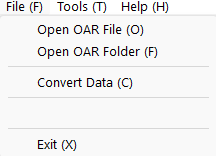
- Select "File" menu -> "Open OAR File", and select OAR file (ex. ABC.oar)
- OAR file is extracted
- OAR folder is created with prefix "OAR_" at same folder as the OAR file (ex. OAR_ABC)
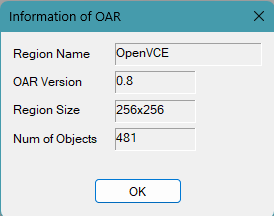
- Information dialog of OAR file is popped up
- "Convert Data" sub menu becomes active automatically
- Set Output Format
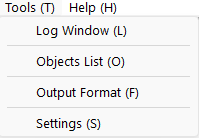
- Select "Tools" menu -> "Output Format"
- Select output data format, target engine (Unity or UE) , Joint Support and No Offset options
- The selected state is displayed at the bottom of the program
- Convert OAR files
- Select "File" menu -> "Convert Data"
- Conversion starts and DAE folder is created with prefix "DAE_" at same folder as the OAR folder (ex. DAE_ABC)
for Unity†[edit]
Unity Editor extension[edit]
- Before drag and drop converted dae folder to the project view of Unity, please drag and drop to Unity3D\Editor folder to the project view first.
- If you use Unity2022, please drag and drop to Unity3D\Editor_2022 folder to the project view first (v1.8.6).
import of glTF/glb data[edit]
drag and drop to Hierarchy window[edit]
Water asset[edit]
UnityChan[edit]
for UE5[edit]
Plugins[edit]
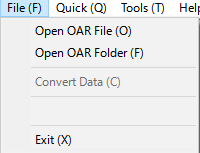
Open OAR File†[edit]
- Select OAR file or archive.xml file in extracted OAR folder.
- When OAR file is selected, OAR file is extracted at the same folder as the OAR file and with "OAR_"(default) prefix folder name.
- If OAR file is read correctoly, "Information of OAR" Dialog is poped up and OAR path displayed at status line.
Open OAR Folder†[edit]
- Select extracted OAR folder.
- If OAR file is read correctoly, "Information of OAR" Dialog is popped up and OAR path displayed at status line.
Convert Data†[edit]
- Convert OAR files to DAE/OBJ/glTF/glb/STL files.
- for example, DAE folder with prefix "DAE_"(default) is created at the same folder as the OAR file/folder.
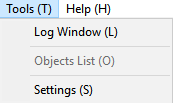
Log Window†[edit]
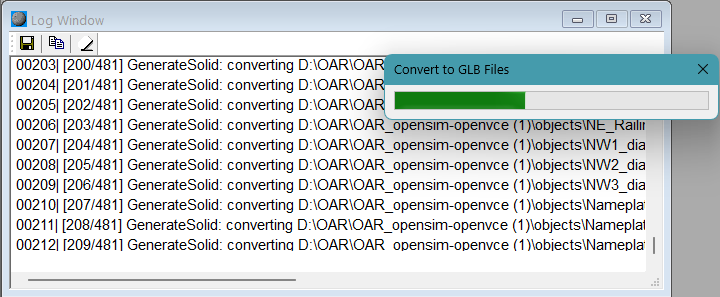
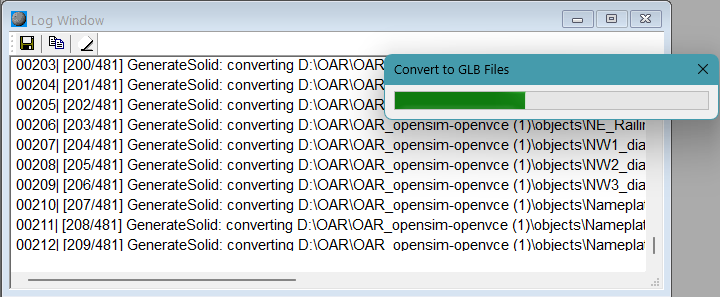
- Display Log Messages
- Floppy Icon
- Copy Icon
- Copy selected area to cripboard.
- Eraser Icon
Objects List†[edit]
Output Format[edit]
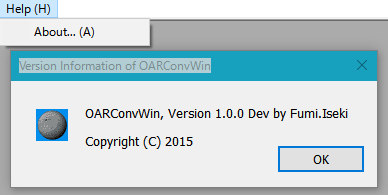
- Show Information Dialog of this application
Child Windows and Dialog Windows†[edit]
Information of OAR Dialog†[edit]
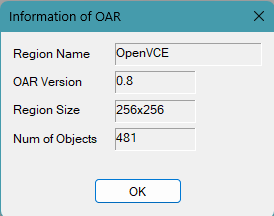
- Information of OAR (Region).
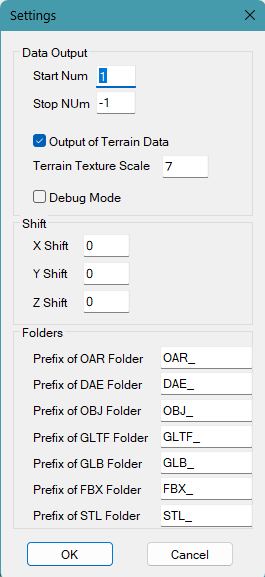
Settings Dialog†[edit]
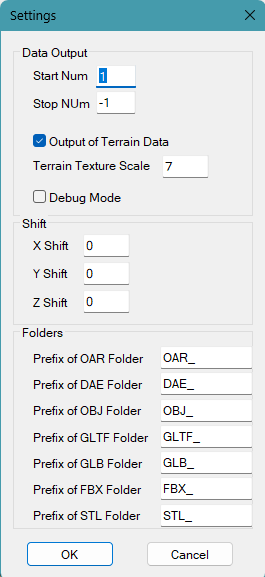
Start Num†[edit]
- Number of objects to start the conversion.
- 0 or less is specified, it is considered 1.
- Number of objects to stop the conversion.
- -1 means infinity.
- When "File"-> "Convert Data" is selected, DAE files are outputed.
- When "File"-> "Convert Data" is selected, STL files are outputed.
Output of Terrain Data†[edit]
- If checked, Terrain data is converted, too.
Terrain Texture Scale†[edit]
- Repeat factor of Terrain Image.
- Usually 7 is used at SL/OS Viewer.
Debug Mode†[edit]
- Debug information are displayed at Log Window
- Specify position shift of objects
- Specify prefix names of OAR, DAE and STL folders
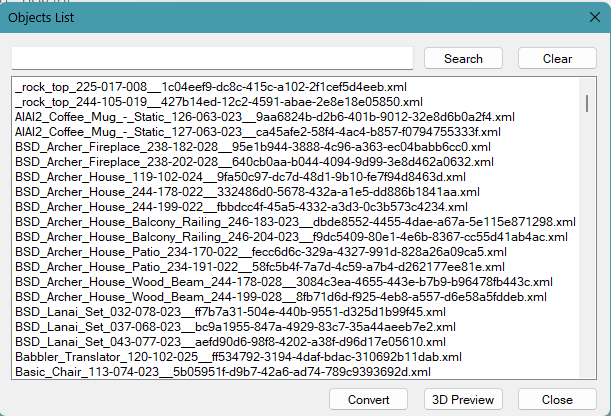
Objects List†[edit]
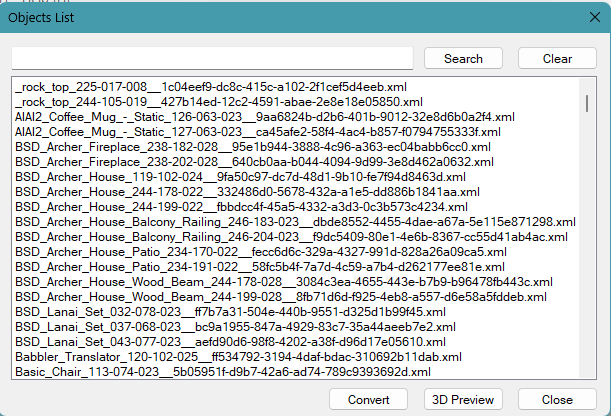
- Display name list of read objects.
- While this Dialog is displayed, File Menu is disabled.
- Double Click a object name
- Show Preview Shape Window
- Select some object names and click "Convert" button
- Selected objects are converted.
- Select some object names and click "3D Preview" button
- Selected objects are displayed on 3D Preview Window.
- At most 5 windows are displayed at a once.
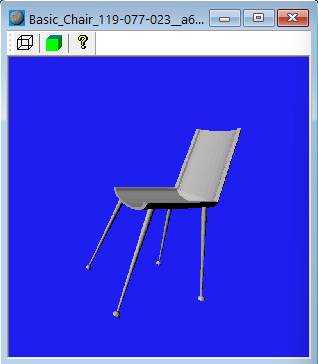
3D Preview Window[edit]
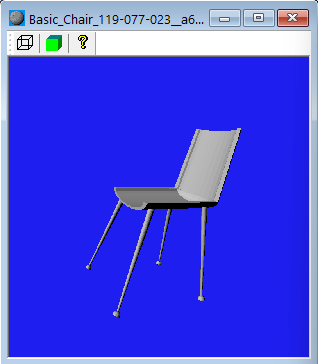
- Display a preview a shape of object using BREP.
- Texture is not displayed. This is a Preview.
- Wire Icon
- Solid Icon
- Display planes of Solid.
- Illegal surface is displayed as Red Plane.
- Question Icon
- Display solid (BREP) information of this object.
![[PukiWiki]](image/pukiwiki.png "[PukiWiki]")